
User Guide#
This page contains a user guide that will get you started with the application instantly!
Using the website#
The following dropdown menu explains how to navigate the website, and where to find the content such as exercises.
Basic Navigation Guide
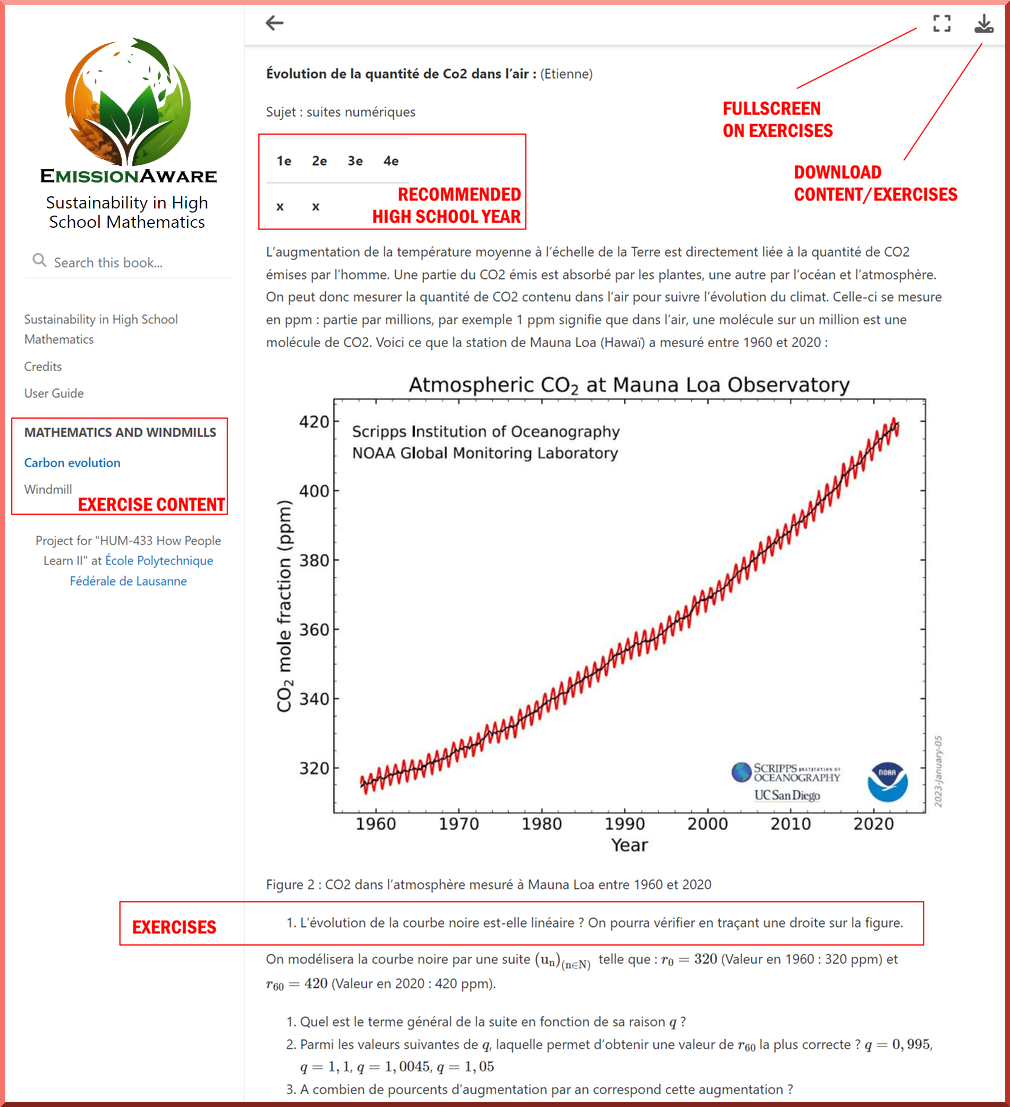
Fig. 1 Basic Navigation Guide#
Interactivity#
Interactive pages can be distinguished by the “[Interactive]” tag behind the title. These pages have additional functionalities that can be explored, such as simulations. Since these simulations are made using code, we provide specific instructions to show how to make them interactive, such as by tuning experimental parameters. Please take a look at the figures below for more information on how to do this.
Using Jupyter Notebooks
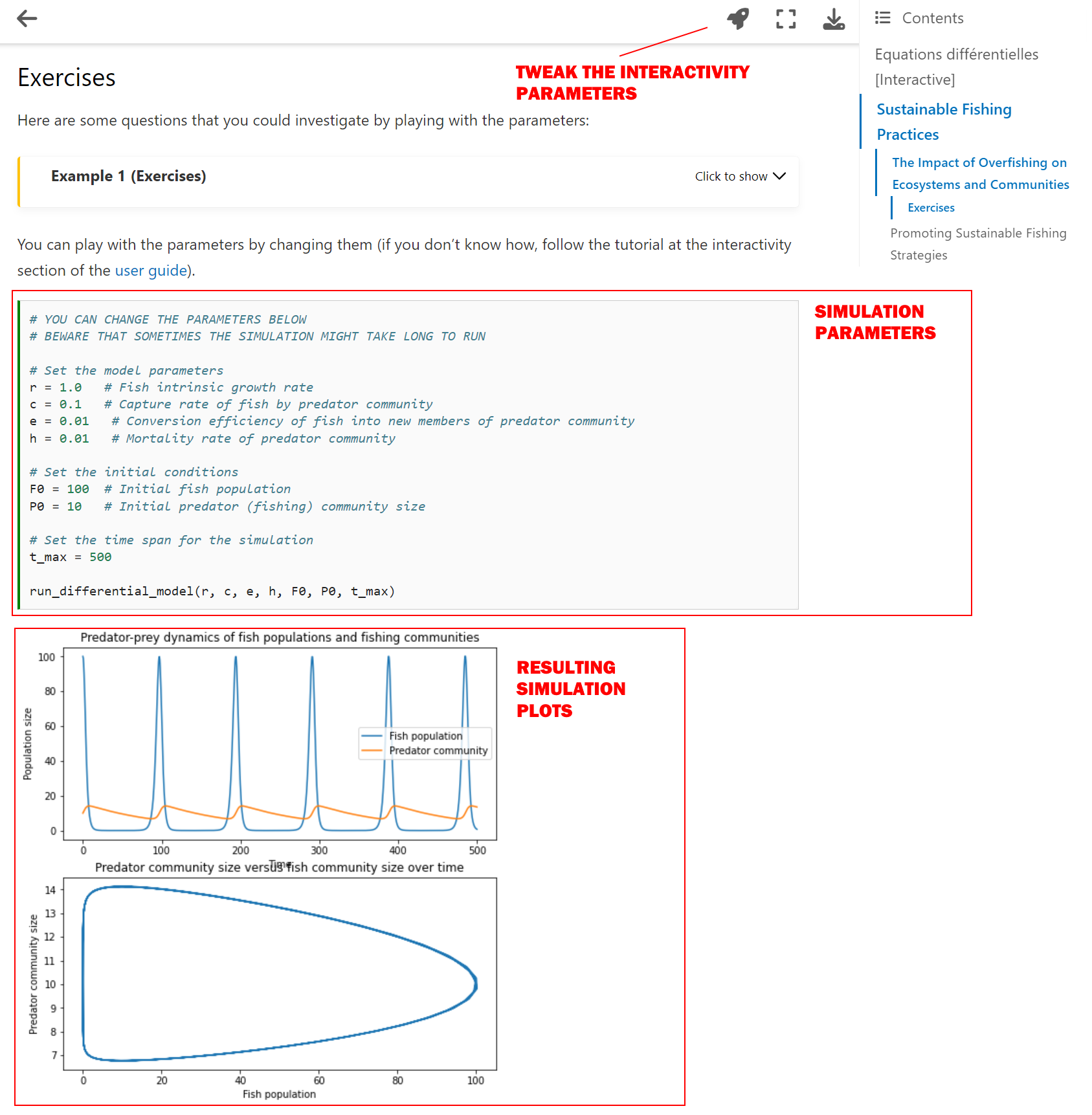
Fig. 2 Using Simulations with Jupyter Notebooks#
After clicking on the rocket-shaped button, follow the steps below to use interactivity:
Click on “COLAB”
When the file has opened in Google Colaboratory, go to “Runtime -> Run All” as in the image below:

Scroll down until you see a block with the parameters like in the image below
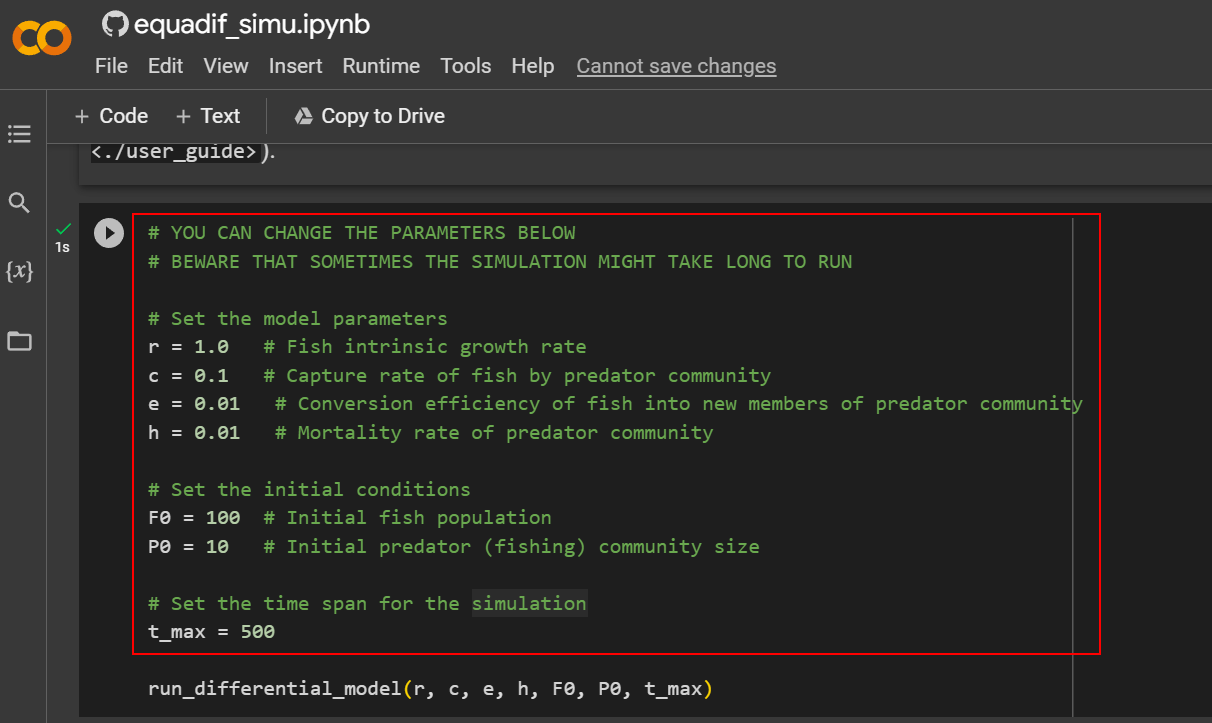
Change any of the parameters in this block depending on your goals, and press the play button on the top left of the block. Alternatively, you can select the block and press “CTRL + ENTER”. The code will now be executed, and you should see the results afterwards.
Contributing to the project#
You are encouraged to contribute to this project! If you are interested, reach out
by e-mail or help out by contributing to the
GitHub repository. Additionally, if you do
not know how GitHub works, but you would like to become involved, please reach out
by e-mail! We appreciate all efforts!